

This is a beta feature. It is not yet production-ready and may not work as expected.
Overview
Plugins let you bring external business context directly into Fossy’s review workflow. They extend Fossy’s understanding with data from tools such as Jira, so feedback and actions stay aligned with your team’s processes.What Plugins Are
Plugins are Model Context Protocol (MCP) servers curated by Fossa. Each plugin exposes specific capabilities—like fetching tasks or checking specs—that Fossy can use while collaborating with you on pull requests.Fossa MCP
Every workspace ships with the Fossa MCP already connected. It aggregates secure adapters for every supported Git provider—GitHub, GitLab, Bitbucket, and Azure DevOps—so you never need to install separate code-manipulation plugins. Beyond source control, the Fossa MCP unlocks first-party automations:- Manage Fossy rules directly from a review thread (create, edit, or remove).
- Open Fossy issues manually when you need a custom follow-up outside of the automated flow.
Using Plugins in Suggestions
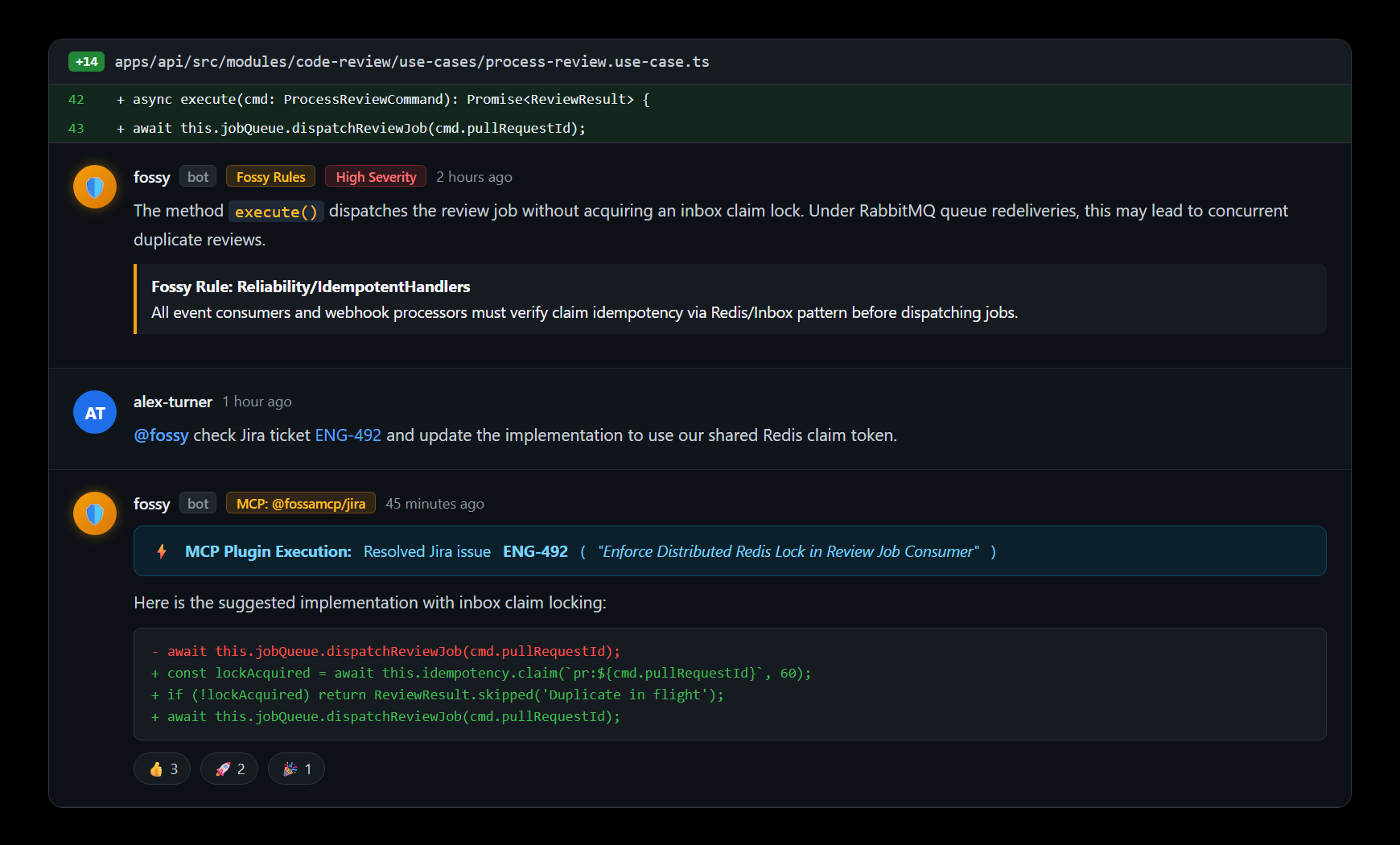
Example prompts
@fossy, update this fossy rule to ignore test files@fossy, move this task https://jira.com/task-123 to DONE
Validating Business Logic
Use the@fossy -v business-logic command when you want Fossy to compare a pull request against a specification. Provide the spec content inline or share a link:
@fossy -v business-logic https://jira.com/task-123
Business Logic Validation Guide
Explore the in-depth walkthrough with prerequisites and troubleshooting for
@fossy -v business-logic.Controlling Access
Fossy only sees the tools you enable for each workspace. Install the plugins that matter to your workflow and keep everything else private.Custom Plugins
Bring your own MCP servers when you need capabilities beyond the curated catalog.- Open the plugin catalog inside your workspace and click Add Custom Plugin.
- Provide the endpoint details:
- Plugin Name (required) and optional Description to help teammates understand the integration.
- Optional Logo URL for a recognizable icon in the catalog.
- The MCP URL that hosts your server along with the expected Protocol (HTTP or WebSocket).
- Any required Authorization method or custom headers for authentication.
- Click Create Plugin to instantly make it available to Fossy within the current workspace.
Tips
- Mention Fossy only once per request so the correct plugin runs without duplication.
- Keep links accessible to your workspace; Fossy needs permission to reach the target resource through the plugin.
- Review the plugin catalog periodically—new integrations are added as Fossa curates additional MCP servers.